Tuesday, January 28, 2014

I Forgot My Apple ID or Password

I haven't been posting to this blog much...... wasn't sure it was that valuable to my community of friends and family. BUT I live in a retirement community where people are getting iPads and iPhones faster than I can keep up with them. Thank you Grandson, Son-in-law, Daughter for the gift of an iPad for your mom.  BUT, before you send her home, will you remind her she needs to know, understand and remember  her Apple ID and Apple ID password? For those of us who are in the 60+ crowd, we love the technology, but we cannot remember those dang passwords!


We "Boomers" may have the time and interest in an iPad, but at the same time, we may not have the memory to remember all those things you told us. Like the password.

Why does one need to know the Apple ID and password?  Does your system software need to be updated? You'll need your Apple ID and password.  In fact, if people don't have the newer system software iOS7 installed, it will be confusing for them as they try to keep up in any of the many iPad classes offered in their community or public library.  You can begin the install but before it is completed, you will be asked for your Apple ID password.

Do you want to get some free game apps? Would you like to install the Facebook app?  Yep.  You need it is to set up an account in iTunes. You will want to set up an account in iTunes if you want to purchase music, books or apps. Even to get free apps, you will need your Apple ID and password.

So, just in case you cannot remember Grandma's password, and she calls you, you can go to iforgot.apple.com to reset the password.

Sunday, June 9, 2013

Getting Free Books for your Summer iPad Reading

I love reading on my iPad. I FIRST loved reading on my Kindle, but now I have switched exclusively to reading on my iPad Mini. Actually, I sold my Kindle, but kept my Amazon Kindle account.
My husband and I have 894 books archived in our Kindle Library on Amazon. We each have installed the Kindle Reading App on our iPads, iPhones and iPad Mini, so we can read any of those books at any given time.

Some Disadvantages to Reading ebooks:

1. It is not so easy to lend a book to a friend. Some books in the Kindle Archive are "lending enabled", but most of them are not.


2. I also do not like paying for a book. Although the Kindle edition is usually cheaper than the paperback, I still miss going to Bookman's Used Book Store and using my trade credit to pick up a book. To help with the cost, I follow Book Bub.


and Kindle Books and Tips, a blog by Michael Gallagher to see what is free or discounted. Many of our 894 books were free or very inexpensive.


You can subscribe by email or follow those two sites on Facebook.
Another way to help with the cost of reading ebooks is to use Overdrive and the Pima County Library. Pima County Library now has its own app in the App Store. You can now access Overdrive through that App.
Overdrive enables you to reserve an ebook and then add it to your iPad or other device. You can keep it for three weeks.  They do not have a huge selection, but they do have a variety of good books. I wanted to read Wild by Cheryl Strayed. I put a reserve with the library, and I think I was, like, 53rd on the list, but the library has 12 copies of the ebook.   I was surprised how quickly I received my email notice saying that I could now check out the book.
You can download the book in epub format, which works with most devices, or if you have an Amazon Kindle Account like I do, you can download it in Kindle format.  More on that in a later post.

If you own a desktop, laptop, tablet or smartphone of any type, you can download the Overdrive App (Pima County Library App if you are local ) and the Kindle Reading App for your device. Happy reading!

Friday, May 31, 2013

I Should Have Known....Back Up Your iPad!

I received this email from a friend today:

"Just in case you haven't backed up your iPad or iPhone lately, here's my experience.

Last week my "contacts" inexplicably went kerflooey.  Suddenly, I had 692 contacts, most of them with first name only or last name only or email only.  It was a mess.  Since I was backing up to ICloud, each time I opened the next device or iTunes, those corrupted files exploded onto that platform.

Yesterday I spent about 3 hr. on the phone with an Apple Sr. Tech Advisor.  Eventually, we got to the dreaded point of having to do a Restore from backup.  I had assumed that restoring to the Cloud would work, but since my Cloud was corrupted, we had to go back to what I had backed up on my computer--9 months ago.  So after making my IPad look like it did last September, I spent another 8 hrs. or so getting everything back in order.

Bottom line, use the Cloud if you want, but manually back up to your computer once a month. Connect your device to your computer and open iTunes, click on the device icon, go to summary tab, choose back up to my computer.  I wish I had!"

So, for those of you who are also depending on iCloud, here is how you back up to your computer monthly:

1. Turn on your computer and open iTunes. Check to see that your iTunes is updated if you haven't done this in awhile....


2. Detach the AC Power from your power cord, plug the USB end in to your computer, and the other end into your iPad.

3. Make sure your iPad is on, and it should show up in the left side bar of iTunes (From iTunes menu, choose View, then Show Sidebar):

4. Click on your iPad in the sidebar and you will see some options. On the left in the main screen, you have the opportunity to manually do a back up to your computer.

5. Choose "Manually Back Up Now".


From this same screen, you can also choose to sync your iPad to this computer over wifi.
If you choose that option, you will not have to plug in again. It will back up to the computer when you are on the same wifi network (i.e. your home network) unless you change the settings back to iCloud. 

6. After you are sure you have done a back up to your computer, you can change your settings to back up over iCloud again. 

Saturday, May 25, 2013

I Didn't Just Fall Off a Turnip Truck. Really. I Should Not Have Fallen For It.

So, I have been selling things on Craigslist, and more recently I have chosen to use Amazon for several reasons:


The Scammers are alive and well on Craigslist. When I listed my camera for sale. I immediately got three texts..... very definitely recognizable as Scammers. Craigslist even warns you specifically not to ship things or to accept Cashier Checks or Money Orders from them. So I know that. I didn't just fall off a turnip truck. I have given presentations on Internet Security.

How was I so easily fooled on Amazon? Amazon is really secure and safe. In fact, there is a place in the settings where you can say, "Shipping only within the United States".  Like I told you before, I have successfully sold items on Amazon.

So, last night we are heading out to dinner with friends. I get an email which looks like an inquiry from a potential buyer through Amazon. He asks, "Send Pictures". He gives me his personal Yahoo email.
I don't think much of it. I sent him pictures. To his Yahoo email.

This morning I get an email which looks like the real thing telling me my item has been sold, Amazon has the payment, and I should ship my camera.

To an address in Lagos, Nigeria.

My stomach started to hurt. What had I done?  The good news is I still had my camera!

Well, I called Amazon Seller Central Customer Service. He showed me that the email was a scam, and reminded me I had it in my settings not to ship outside of the U.S. Also, he patiently walked me through several ways that I could check to see if, indeed, the item had been sold.

It was later that I realized my mistake. Rather than replying through Amazon to the potential buyer, I had fallen for his scam to get me to reply to his email, hence, opening the door to his fraudulent email. Both Craigslist and Amazon have a conduit in place to allow communication without revealing your identity.

I learned my lesson, and I will continue to sell on Amazon, and I hope you will give it a try as well, but always be careful.

Want to Sell Your Used Electronic Stuff?

Last year I discovered Amazon Seller's Account.  I have an iPhone, and so I never use my Garmin GPS anymore. I went on Amazon to get an idea of the value of my GPS, and I saw a link that said, "Have one to sell?"


This opened up a whole world to me for selling electronic items no longer of use to me. For instance:


  • iPhone means I no longer need my GPS or my Garmin Forerunner.
  • Newer Macbook Pro means I no longer need my perfectly good older one.
  • Bluetooth in my car means I no longer need my Motorola Bluetooth earpiece.
  • Ipad means I no longer use my Kindle


I could go on.

I was able to easily open a seller's account on Amazon and begin selling these items. Some other items I have been able to sell include memory no longer being used, cameras that have since been replaced and other computer and camera peripherals. It is really easy to do. Amazon does all the work for you, but you have to ship it. Amazon takes all the guess work out of the transaction. Some nice things that Amazon does:


  • Walks you through the item description
  • Tells you the lowest price that someone is selling it for
  • Maintains your privacy
  • Collects a shipping amount for you
I have sold everything I have listed on Amazon except one item.  And, I just listed my Canon Camera body and lenses, because I got a new camera for my birthday.  

Anything you need to watch out for? YES! I will deal with that in my next post.

Thursday, April 11, 2013

From OSX Daily: Dropped an iPhone in Water? Here's How to Save it from Water Damage

I wish I had known this when I was working as a principal. I had more trouble with dropping my Walkie Talkie in the toilet! The tech guys were getting to know me well! The last time, I told my assistant to just tell the tech guy "it doesn't work". I know. I know. Not very honest.
So, he brings my repaired Walkie Talkie back to my assistant, and he says, "So, Anita dropped her phone in the toilet again, I see!"
I don't know if those of us who are retired, and not encumbered with working, little kids, or other situations need this info But it can't hurt to keep this just in case. Read more here. By the way, OSX Daily is a great blog to subscribe to. It has lots of useful information about iPhones, iPads and Apple Computers.

Connect your Mac to your Tv....... Why????

I recently purchased a new cable to connect my MacBook Pro (mid 2010 model) to the projector for the Sunflower Computer Club. Several people have asked, "How do you do that?" "Could I connect it to my TV?"
Why would you WANT to connect your computer to your TV? There are some fun things you can do with your computer connected to your TV:

1 Work on your laptop in the comfort of your easy chair and display it on the TV
2 View Netflix or Amazon Prime TV shows or movies on your big screen through your laptop
3 Show your Grand Canyon Slideshow to friends and family

What you need to know:


This shows a newer Macbook Pro and it's ports. The Thunderbolt Port is where you will connect one end of your cable. The other end of the cable is hdmi and will connect directly to any of the hdmi ports in your tv. Then, of course, you will need to change your input so that you are displaying the hdmi port you are connected to
This is the cable I purchased from Amazon: Mini Display Port to HDMI

After connecting computer to TV via cable, go to your System Preferences and click on Display
 Make sure you turn on mirroring options. This looks a bit different if you are still using Snow Leopard

 Of course, you can also pay $99 for Apple TV and connect that way, but this is cheaper, and Apple TV won't let you connect to Amazon Prime. I prefer Amazon Prime, but that is another blog post.


Monday, April 8, 2013

How to Restart a Mac in Recovery Mode

The purpose of this blog is to provide assistance for those who may be new to iPads, iPhones and Macintosh computers. I am president of the Sunflower Computer Club and one of two facilitators of the Sunflower Macintosh User's Group. When the Macintosh User's Group meets, we take questions and provide assistance to new users as well as Apple veterans. One that came up today was how to restart your Mac in Mountain Lion. Remember we used to have a boot disk, and pressed "c" and the start button. I learned that Lion and Mountain Lion has a disk-free boot option. The article in MacLife tells you how to do that.  You can read more here, but the simple trick is hold down the option key while pressing the power on button.

Sunday, April 7, 2013

Using your iPad or iPhone to Track Your Health

We are really trying to eat healthier. We view ourselves as careful about what we eat (except when we aren't) . Still, food that seems good may not be good for us (duh). We gained a little more awareness recently when our daughter visited the Houston Headache Center and was consulting with a neurologist about her migraine headaches. Among other things, he told her to completely give up diet soda, anything else with Aspartame, and any food with any form of MSG. 
This sent me on a hunt for foods with MSG. I had heard from my nephew's wife Spring that MSG is disguised by other names. So, of course I Googled, "other names for MSG". I printed out a chart of other names for MSG, and have been on a mission to avoid those foods.
When I told my friend, Sherry, she said, "Well, what about Fooducate?" I had TOTALLY forgotten Fooducate, which has a free app for iPhone and Android. In fact, other than downloading the free app, I had not looked at it again. She thought that it would identify MSG.
So, now I have created an account and used Fooducate. I found a daily tip sheet at Fooducate.com which gives the many names of MSG. It also gives a letter grade to the foods you eat, and tells you why (i.e. high sodium, high sugar, etc.). 
One of the nice things about Fooducate is that you can scan a food's barcode and get an instant grade.
My husband's Fig Bars that he got from Costco (liked them so much he bought two boxes) has 5 teaspoons of sugar in a very small 2 serving package, which he has been eating every day. Actually, Fooducate rated this product a C+.
I did a search in the App Store for Fooducate and could not find it, so if you are interested in downloading it, go to www.fooducate.com.
I am using some other health apps as well, but that will be another post.

Sunday, March 17, 2013

Google Ordered To Tell Us "Quit Shouting to the World What You Are Doing on the Internet!"

Google "snooped on people's Wi-Fi networks".  Google employees out in the neighborhoods taking pictures for their Street-View, used information they took from open Wi-Fi networks in the neighborhood. As a result of a class action lawsuit, Google is being ordered to let people know that they should secure their open Wi-Fi with a password. An interesting part of this is that Google thinks what they did is perfectly legal ..... (read the entire article here)

Google has maintained in its defense against the class action that it did nothing illegal by gathering data from open Wi-Fi networks. Their argument: By leaving your Wi-Fi network open, you’re essentially shouting what you’re doing over the Internet to the world. That last line may well end up in their forthcoming educational YouTube video. Read More here

Thursday, March 14, 2013

I Lost My iPad. No. Really.

I lost my iPad a couple of weeks ago. I was eating lunch with a friend and I had it out in the restaurant. When I left, I did not stick it back in my bag. I just had it in my hand (first mistake). As I was walking to my car, I noticed this little gift shop was open, so I stepped in there to talk to the salesperson about an item I had seen a few months earlier. As she showed it to me, I must have just absentmindedly set my iPad down on the display table to look at the item. I ended up making the purchase, picked up a business card from the business and headed home. I needed to hurry home because I was going to teach an iPad class in my neighborhood Center. Yes. Really. I get ready to go, and........ "Where is my iPad?" Long story short,  I had to go set up for my class without my iPad. Denny said he would call the restaurant and the gift store. Much to my embarassment, he showed up at my iPad class and handed me my iPad. Phewwww! Close one! So, what to do if you lose your iPad? Go to a computer. Log in to iCloud. Click on Find my iPad.  Make sure that you have gone into settings on your iPhone, iPad or other device and said "Find my iPad (on)".

So, as you can see, I can find my iPad NOW because it is at home and online, but in the previous scenario, it was locked and offline. So, thankfully I have a husband that would go looking.

Don't lose your iPad.

Monday, March 4, 2013

Use Excel to Keep Your Passwords Safe

A simple way to keep your passwords in a secure place is to create an Excel worksheet, enter your passwords and other important information about your web login or account. Once you have saved the file, you can lock it with a password (Now that is a password you will have to remember!). Here is how you do it in Office for Mac 2011:

Once you have created and saved your password file in Excel, go to the File drop down menu, and scroll down to Passwords:

From there, you can choose a password for your file

If you are using an older version of Office, go to Excel>Preferences>Security and go through the same steps to create a password. 

Once you have saved and secured your file, save it to either 1) Dropbox or a 2) Flash Drive that you either keep with you or store away from your computer.


What You Don't Know About Passwords Can Hurt You


This month I read a very interesting article in Macworld Magazine. After reading this article, I am changing some of my own password habits. 

Here is an exerpt from the article by Joe Kissell that alarmed me:

"Suppose you signed up for a LinkedIn account, and you used the same password you previously chose for your Gmail account. Then, in June, you were one of the unlucky people whose LinkedIn password was leaked. An enterprising hacker who knew your LinkedIn password could have easily tried it with other popular services, so getting access to your Gmail account would suddenly be trivial. That’s a problem not just because someone could read or delete your email, but because you might use your Gmail address to access or reset other passwords. If the hacker clicked the “forgot password” link on another site, he could then check your email to get access to accounts that use other passwords. Even reusing a single password in two places could, in this way, cause cascading problems."

I know enough, and I think we all do, to make a more complicated password and write it down somewhere. But then, I tend to use the same password, or a variation of the same password for all of my accounts. After reading this article, I knew I had to make some changes. So, how much do I have to change? 
A secure password is most important on your email, your bank account and any other financial information. As I read in this article, if someone gets into your email account, they can get into other accounts. 

I hope you will take the time to research this for yourself and change what you need to change. 

Monday, February 25, 2013

How to Load Photos onto your iPad

We recently went on a little two day trip, and I took lots of pictures. I like to take my Canon digital SLR camera, my Apple iPad Camera Connection Kit, and my iPad. I dump my pictures from my camera at the end of each day to my iPad, and then I can edit as I go, deleting pictures that did not turn out that well. I could also immediately share on Facebook or by email via iPhoto.

How to Load Photos onto Your iPad
Loading photos onto your iPad 2 from a digital camera, your iPhone, or from the web is easy enough if you buy the iPad Camera Connection Kit from Apple.

The kit contains two adapters: a USB Camera Connector to import photos from a digital camera or iPhone, and an SD Card Reader to import images from an SD card.


Follow these steps to import photos from a camera or other device, after you have the connector kit in hand:


  1. Put your iPad to sleep using the switch on the top of the iPad.
  2. Insert the USB Camera Connector into the Dock connector slot of your iPad.
  3. Connect the USB end of the cord that came with your digital camera or iPhone into the USB Camera Connector.
  4. Connect the other end of the cord that came with your camera or iPhone into that device.
  5. Wake your iPad.
  6. The Photos app opens and displays the photos on the digital camera or iPhone.
  7. Tap Import All on your iPad.
  8. If you want to import only selected photos, tap individual photos, tap Import, and then tap Import again.
  9. The photos are saved to the Last Import album.
  10. Disconnect the cord and the adapter and you're done!


You can also import photos stored on an SD (secure digital) memory card, often used by digital cameras as a storage medium. Simply put the iPad to sleep, insert the SD Card Reader into the iPad, insert the SD card containing the photos, and then follow Steps 5 through 7.

My Canon digital SLR uses a CF card (Compact Flash), so what I do is remove my CF card from my camera, insert it into my CF card reader, then plug that into the USB Camera Connector and into the Dock connector slot of my iPad.

Tuesday, February 12, 2013

Can Just Anyone Write a Blog?

Yes! Anyone! About anything!
In our Macintosh Users Group last week I was sharing a great post from MacOSXDaily, and someone spoke up and asked,

"Can just anyone write a blog? How do you know who to trust?"


Good question. I do a lot of training and support for Mac systems and iPads and iPhones. Because of this, I search blogs and forums. There are some I trust, and others I ignore. It is good to remember a few good sites that you know give credible information and support.

One I subscribe to and read regularly is the MacOSXDaily. I find lots of helpful tips and tricks on that blog. Check it out. You can bookmark it and check it once in awhile, or you can subscribe to it and have it sent to you by email. I have this one sent to my email, and sometimes I find it relevant, sometimes not.

Here is a good one from today...


Read more...

Tuesday, February 5, 2013

Have a Delightful Day for 99 Cents

I'm always looking for a good book, and I have learned that I have people who delight in the same types of books that I like. If I am looking for any type of self-help book (which I really love), I read anything my son Brian Howard recommends. He has never steered me wrong in that category.
But fiction? I am not sure Brian ever reads fiction, but this I know, my friend Marianne does, and I can trust her if she says a book is delightful. So......
I see an email post from her today, and she has commented about a book on:


She says the book is "delightful" and that she "couldn't put it down". Ok. I am ALMOST sold. Next question. How much is it on Amazon? Because I read almost all my books now on my iPad, and I usually purchase them from the Amazon Kindle Store. I started out with the Amazon Kindle Store because I had a Kindle. Denny and I now share well over 800 books stored in the Kindle Library, and still...... I am always looking for a delightful book that someone said they couldn't put down.
So...... I click on the book Marianne has recommended this morning.

IT IS ON AMAZON FOR 99 CENTS!

Does it get any better then that? (Well, only if it was free.) But 99 cents? Delightful? Couldn't put it down? My kind of book.

In no time at all, I have added it to my Kindle library for 99 cents. Can't wait to start it. I will let you know.

Oh. Here's the book on Amazon:


P.S. Remember, I haven't read it yet,  so don't blame me if you don't like it.

Saturday, February 2, 2013

Denny the Techie (Tekkie?) How Do You Spell Techie?

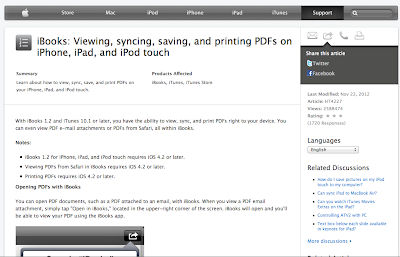
So Denny has an iPhone and an iPad. He is getting to be quite a techie (however you spell it). So this morning he asks me: "How do I get something from iBooks on my iPhone to iBooks on my iPad? 
He tends to use his iPhone more than his iPad, so this is a good sign.
He downloaded an article in PDF format to his iBooks on his iPhone. 
I Googled that question.
Apple Support Communities gave a thorough answer. 
You can read the complete article here.


This way is a little easier:

1. Open iBooks
2. Click on the PDF file, but do not open it.
3. In the options box, choose MAIL
4. Mail it to yourself
5. Go to your iPad and open that mail
6. Open PDF file
7. On the iPad, open the options box again.
This gives you an option to save it to iBooks

Friday, February 1, 2013

Stop iPhoto from Launching When iPhone is Connected

Okay. This really drives me nuts! I connect my iPad to my Macbook Pro occasionally for a couple of reasons, and iPhoto pops up. I have to wait for it to load, then I have to quit iPhoto. OSXDaily, a blog I regularly follow, dealt with this problem. Here is the info I read, and when I followed their directions, it worked perfectly. I would highly recommend this blog if you are looking for tips and tricks for your iPhone, iPad, or other Apple product. 


Thursday, January 31, 2013

I Get By With Some Hints From My Friends

I have a friend who is a Geeky senior citizen like me. We are neighbors in a retirement community, and we both love everything Apple: Mac, iPad, iPhone, you name it (I say that in case Apple comes out with another new product today or tomorrow). We have only known each other about a year. We met through the Sunflower Computer Club and now serve on the SFCC Board together. We teach iPad, iPhone and iPod Touch Classes at the Village Center. We get together weekly to discuss our presentation, or do other Geeky stuff. We learn so much from one another. So, here is something I learned from her:

If you are backing up your iPad or iPhone to iCloud, it is a good idea once in awhile to do this:

Connect your iPad in to your computer
Open iTunes
Find your iPad in the sidebar under Devices
Click on your iPad and open it in iTunes.
Choose "Automatically Back up .... this Computer"
Click "Apply" on the right lower corner of the window.

When the operation is complete,  You can then click the box that says "Automatically Backup...iCloud" Go back to your iPad (sidebar under Devices) and choose the eject symbol. You will now have a full backup on your computer.

This is also handy if you are upgrading to a newer iPad, or you are buying an additional device, like an iPad Mini.